Monthly Archives: March 2026
Surface Arc Mouse on iPhone with Windows App — and how to stop your screen from falling asleep mid-session
Picture this: the room you normally use as your home office doubles as the guest bedroom, and right now your guest is fast asleep in there at 7am. But you still need to work. So you grab your iPhone, your Surface Arc Mouse, your Logitech K830 keyboard, fire up the Windows App, mirror everything to the living room TV via AirPlay, and suddenly you have a fully functional Windows desktop from the couch. No laptop needed.
This was my setup this morning. I got my Surface Arc Mouse yesterday, played around with this setup, and already ran into the firmware update process. It works surprisingly well, once you figure out the sleep problem.
Part 1 — Surface mouse on iOS: it’s a preview, but it works
Microsoft quietly added Surface mouse support to the Windows App on iOS. It’s currently in preview, and only specific devices and firmware versions are supported. Let’s go through the setup.
Supported devices
- Surface Mouse
- Surface Arc Mouse
Prerequisites
- iPhone 15 or above with Bluetooth enabled
- A Windows PC with the latest Windows updates installed
- A supported Surface mouse
Step 1 — Firmware update (don’t skip this)
Before anything works, your mouse needs a firmware update. And here’s where Apple fans get a gentle reminder that the world does not always revolve around them — the firmware update can only be done from a Windows PC. Not iPhone. Not iPad. Windows. You’ve been warned.
The required firmware versions and download links for both the Surface Mouse and Surface Arc Mouse are listed in the Microsoft documentation. Run the MSI package in administrator mode on a Windows PC, connect the mouse via Bluetooth, and leave it sitting there for 10 minutes doing absolutely nothing. (Yes, really. Ten minutes. Firmware is not in a hurry.)
Step 2 — Pair with iPhone
Settings → Bluetooth → select the mouse from the list of available devices.Step 3 — Use it in the Windows App
Open the Windows App, start your AVD or Cloud PC session — the mouse is automatically detected. No additional configuration required. You’ll see a proper Windows cursor in your remote session. It genuinely feels like sitting at a desk.
Part 2 — The problem: your iPhone falls asleep
Here’s the catch nobody tells you about. When you’re using a physical mouse and keyboard with your remote session, you’re not touching the iPhone screen. And iOS, in its infinite wisdom, sees zero screen activity — so after your Auto-Lock timeout, the screen dims and locks.
Your AVD session is still alive on the server. But you’re looking at a lock screen. Every. Few. Minutes.
The good news: there are several ways to deal with this. SimplyMac has a solid overview of all options: How to Keep an iPhone from Sleeping. Here are the most practical ones for our AVD use case:
Option A — Move the mouse?
Really, constantly moving the mouse and don’t stop it for more than 30 sec. Guess not …
Option B — Extend Auto-Lock to never or the possible maximum
By default, iOS locks the screen after 30 seconds of inactivity. You can extend this to never or up to the maximum your company has defined if you have an MDM managed device, in my case 5 minutes under Settings > Display & Brightness > Auto-Lock. That buys you more breathing room between interactions, though it does not fully solve the problem for longer sessions where you are heads-down in your remote desktop.
Security note: The longer your Auto-Lock timeout, the longer your phone stays unlocked and accessible if you step away or leave it unattended. In a home setup this is usually fine, but keep it in mind, especially in shared or public spaces.
Option C — Guided Access
iOS Accessibility feature that locks the phone into a single app and can prevent the screen from sleeping. Enable under Settings → Accessibility → Guided Access, then triple-click the side button when the Windows App is open. Slightly more setup, but reliable for longer sessions.
Option D — iOS Shortcuts automation (advanced)
For those who want it fully automatic: you can build a Shortcuts automation that sets Auto-Lock to “the maximum value” when the Windows App opens, and restores your normal setting when it closes. iOS Shortcuts supports app-open and app-close triggers — a neat two-automation setup if you’re comfortable with the Shortcuts app.
Hey Microsoft — one more thing
Until then: mouse around, pick your workaround of choice, and enjoy your living room office setup. The sleeping guest is optional but a good reason to show off with this use case…
Microsoft Teams for Mac on AVD & Windows 365: SlimCore Optimization is Now in Public Preview
If you know me, you know: I’ve been using Mac in my personal life since 2006. Not because I’m an Apple fanboy, but simply because it’s the better tool for me. And if you’re familiar with the EUC world, you also know that hasn’t always been straightforward. macOS has traditionally received new features a little later than Windows. With solutions like Microsoft Azure Virtual Desktop (AVD) or Windows 365, accessing corporate environments from a Mac has become quite solid, and here too, things have improved massively over the last few months.
But when it comes to Microsoft Teams in a VDI environment, Mac users like me have been at a slight disadvantage in recent months. On Windows, Teams optimization with AVD has worked reliably for years. On Mac, however, you were stuck with the older WebRTC-based optimization, missing out on features that Windows users had long enjoyed. That is now changing, starting with a Public Preview.
What’s behind it?
With the new VDI solution for Teams (also referred to as “VDI 2.0”), Microsoft has replaced the existing WebRTC-based optimization with a new media engine called SlimCore, the same engine already powering the native Teams desktop client for Windows. The goal is clear: true feature parity between the native and virtualized Teams client, regardless of the endpoint device.
For Windows endpoints, SlimCore has been generally available since late 2024. Since early 2026, support for macOS endpoints is now in official Public Preview, for AVD and Windows 365 environments.
The official reference: Microsoft 365 Roadmap ID 502524 and the Microsoft Learn documentation for the new VDI solution.
Important: MAU version, not the App Store
There is one key detail here that is easy to miss:
MAU stands for Microsoft AutoUpdate, Microsoft’s update mechanism for macOS apps. The MAU version of the Windows App is obtained directly from Microsoft, not through the App Store. If you have been using the App Store version, you will need to switch to get the new optimization. The minimum required version is Windows App for Mac 11.3.2.
Prerequisites at a glance
| Component | Minimum version |
|---|---|
| Windows App for Mac (MAU version) | 11.3.2 |
| Microsoft Teams in AVD/W365 | 24193.1805.3040.8975 |
Enabling Public Preview: Admin steps
Public Preview is enabled via a Teams Update Policy in the Teams Admin Center, the same mechanism used for all Teams preview features.
... > Settings > About Teams > Early access, enable Public Preview and restart Teams when prompted.
How do I verify the optimization is active?
In the virtualized Teams client, navigate to ... > Settings > About Teams:
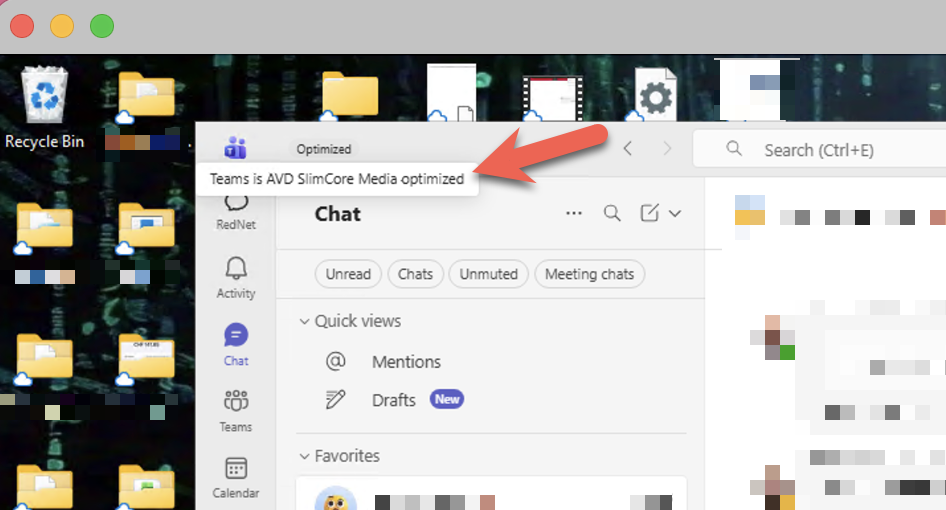
AVD SlimCore Media Optimized
New optimization active. All good.
AVD Media Optimized
Legacy WebRTC optimization active. Not yet on SlimCore.
AVD Media not connected
No optimization active.
Newer Teams versions also display a VDI status indicator directly in the top-left corner of the UI, no more digging through settings.
Conclusion
For Mac users in AVD/Windows 365 environments, this is a real step forward. The SlimCore optimization brings features like 1080p video, Gallery View 3×3/7×7, hardware acceleration, and significantly better performance, all things Windows users have known for a while. I’m genuinely pleased to see this finally coming to Mac.
It’s a Public Preview for now, so test it with appropriate expectations. But the direction is right.
Official links
📄 Microsoft Learn: New VDI solution for Teams
🗺️ Microsoft 365 Roadmap: ID 502524
All information in this article is based on publicly available information from Microsoft.

